Excel WRAPROWS function
The WRAPROWS function converts a single row or column into multiple rows (a 2-demensional array) by specifying the number of values in each row.
Note: This function is only available in Excel for Microsoft 365 on the Insider channel.

Syntax
=WRAPROWS(vector, wrap_count, [pad_with])
Arguments
Remarks
Return value
It returns an array wrapped by rows.
Example
As shown in the screenshot below, to convert the one-dimensional array in the range B6:B15 into multiple rows, and each row contains at most 2 values, you can apply the WRAPROWS function to get it done.
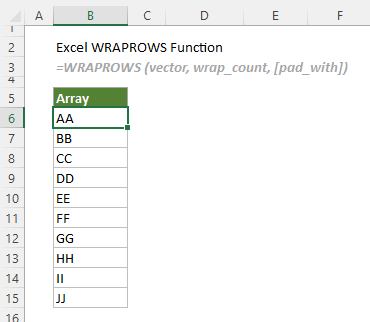
Select a blank cell, such as D6 in this case, enter the following formula and press the Enter key to get the columns.
=WRAPROWS(A6:A15,2)

Notes: If you specify at most 3 values for each row, you will find that there are not enough values to fill the cells in the last row, so, #N/A is displayed.
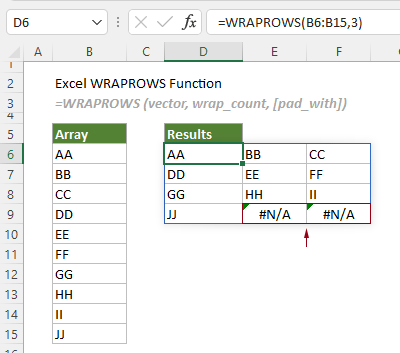
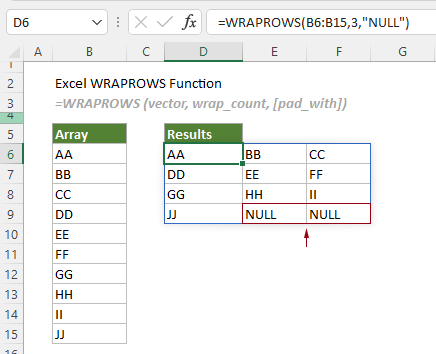
To replace the #N/A with a specified value, for example a word “NULL”, you need to specify the argument “pad_with” as “NULL”. See the formula below.
=WRAPROWS(A6:A15,2,"NULL")


No comments:
Post a Comment